


Why Your Emails Land in Spam (And How to Fix It)
If you're sending business emails and they keep ending up in spam - or worse, you're getting reports that someone is impersonating your domain - the root cause is almost always the same: SPF, DKIM, and DMARC are missing or misconfigured.
Here's the uncomfortable truth: without all three protocols properly set up, your emails are far more likely to be flagged as suspicious, sent to spam, or blocked entirely. Whether you're using Google Workspace (Gmail) or Microsoft 365 (Outlook), this guide will walk you through every single step. No IT background required.
What Are SPF, DKIM, and DMARC? (Plain English)
Think of your email domain as a physical office building. Before an email can be trusted, three checks need to happen:
| Protocol | The Analogy | What It Actually Does |
| SPF | Front desk check-in | Lists the mail servers authorized to send email from your domain |
| DKIM | A signed, tamper-proof envelope | Adds a cryptographic signature to every email so receivers know it hasn't been altered |
| DMARC | The security supervisor | Tells receiving servers what to do when SPF or DKIM fail - deliver, quarantine, or reject |
All three need to work together. Any one alone is not enough - SPF without DKIM means your emails can be intercepted and modified; DKIM without DMARC means there's no enforcement if authentication fails.
Why Google and Yahoo Now Require These
Since early 2024, Google and Yahoo updated their rules - any domain sending more than 5,000 emails per day must have all three configured. But even smaller senders are increasingly affected, as inbox providers now use these signals for all filtering decisions. Not having them is no longer optional for any business that relies on email.
A Note for Complete Beginners: What Is DNS?
DNS (Domain Name System) is essentially the address book of the internet. It's where all the settings for your domain name live - including the records that tell email servers how to handle your email.
When this guide says "add a record to your DNS," it means logging in to wherever you registered or manage your domain name. This is usually one of these providers:
- Cloudflare → dash.cloudflare.com
- GoDaddy → dcc.godaddy.com
- Namecheap → ap.www.namecheap.com
- Google Domains (now Squarespace) → domains.squarespace.com
- Hostinger → hpanel.hostinger.com
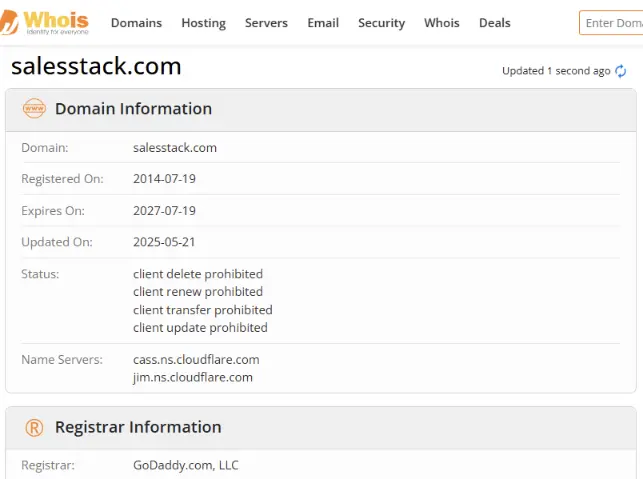
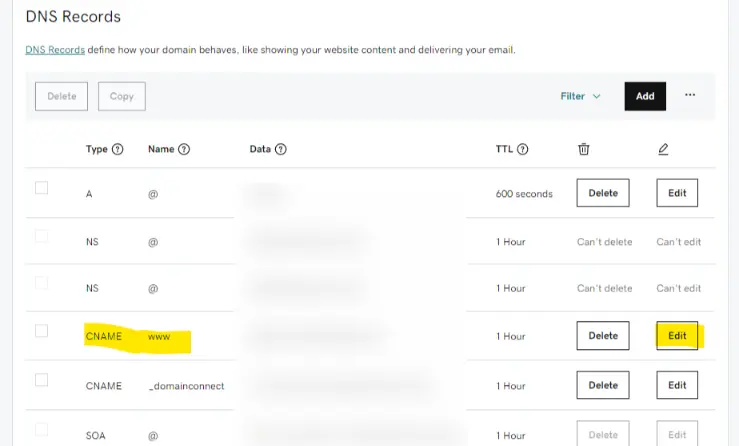
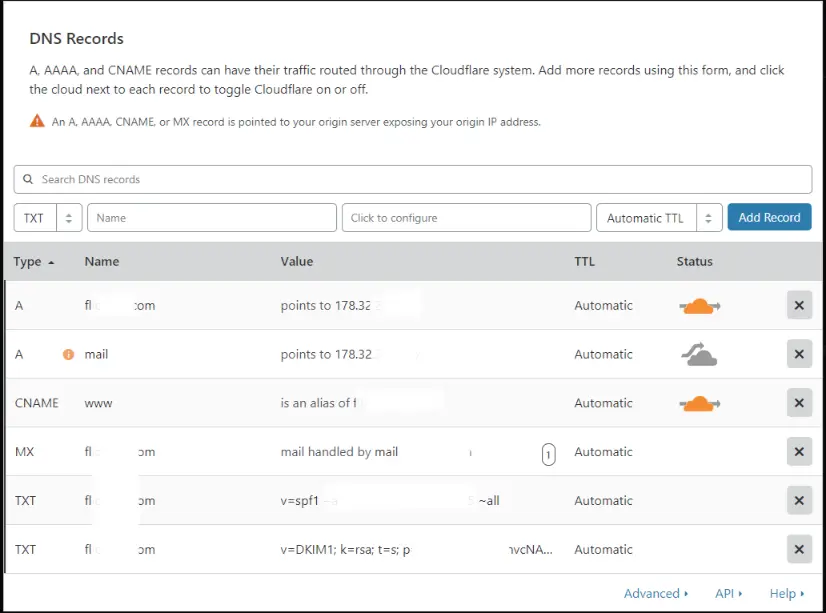
Once you're inside your DNS provider, look for a section called "DNS," "DNS Management," "DNS Records," or "Advanced DNS." The exact label varies by provider but the concept is always the same.
Before You Start: What You'll Need
Regardless of whether you use Gmail or Microsoft 365, you need two things open in your browser before you begin:
- Your email platform's admin panel - links provided in each section below
- Your domain's DNS settings - the provider where your domain is registered (see above)
PART 1: Gmail / Google Workspace Setup
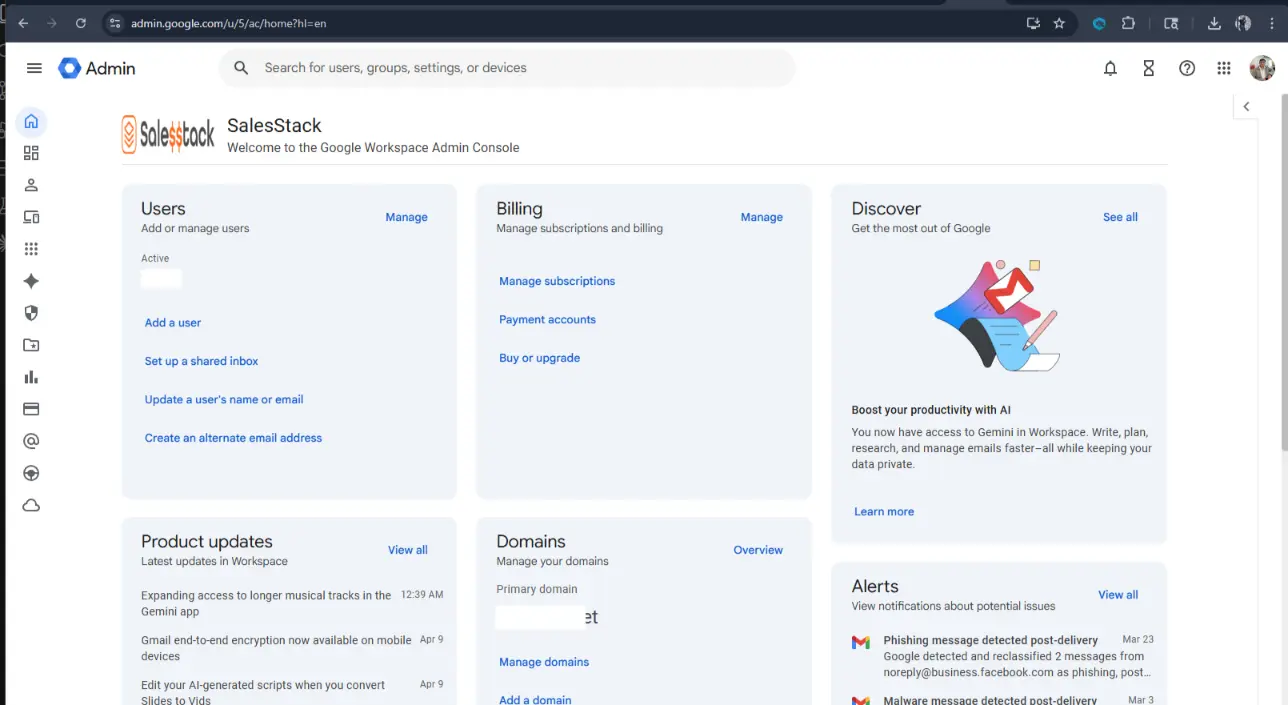
How to Log In to Google Workspace Admin Console
The Google Workspace Admin Console is where you control all settings for your business Gmail account. It is separate from your regular Gmail inbox - most people don't know it exists.
Direct link: admin.google.com
- Open a browser and go to admin.google.com
- Sign in with your Google Workspace admin email and password - this is the email address that was set up when your company first created Google Workspace (usually something like [email protected] or [email protected])
- You'll land on the Admin Console dashboard - a control panel for your entire organization's Google Workspace
PART 1: Gmail / Google Workspace Setup
SPF tells every mail server on the internet: "Google's servers are the only ones allowed to send email from this domain." It's the simplest record to add and the best place to start.
1.1 - Check if You Already Have an SPF Record
Before adding anything, check whether an SPF record already exists for your domain. Having two SPF records breaks email authentication entirely - this is the #1 most common mistake people make.
- Open a new browser tab and go to mxtoolbox.com/spf.aspx
- Type your domain name (e.g., yourcompany.com) in the search box
- Click SPF Record Lookup
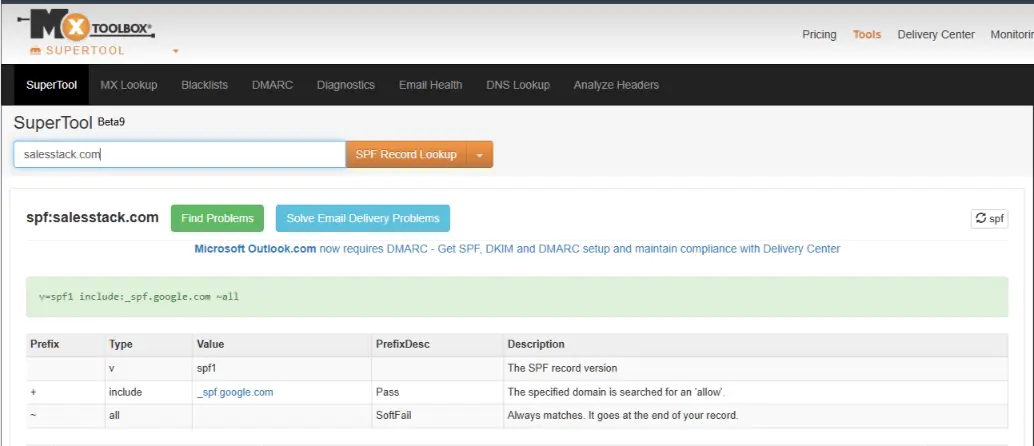
Read the result:
- If the result shows "No Record Found" → you don't have an SPF Record yet. Follow Step 1.2
- If the result shows a record starting with
v=spf1→ a record already exists. Follow Step 1.3 instead - do not create a new one
1.2 - Create a New SPF Record (If No Record Exists)
- Log in to your DNS provider (Cloudflare, GoDaddy, Namecheap, etc.)
- Navigate to DNS Records / DNS Management for your domain
- Click Add Record (or Add New Record - the button label varies by provider)
- Fill in the following fields exactly:
| Field | What to Enter |
| Type | TXT |
| Host / Name | @ ← this symbol means "the root domain itself" |
| Value / Content | v=spf1 include:_spf.google.com ~all |
| TTL | 3600 (or leave as "Automatic" / "Default") |
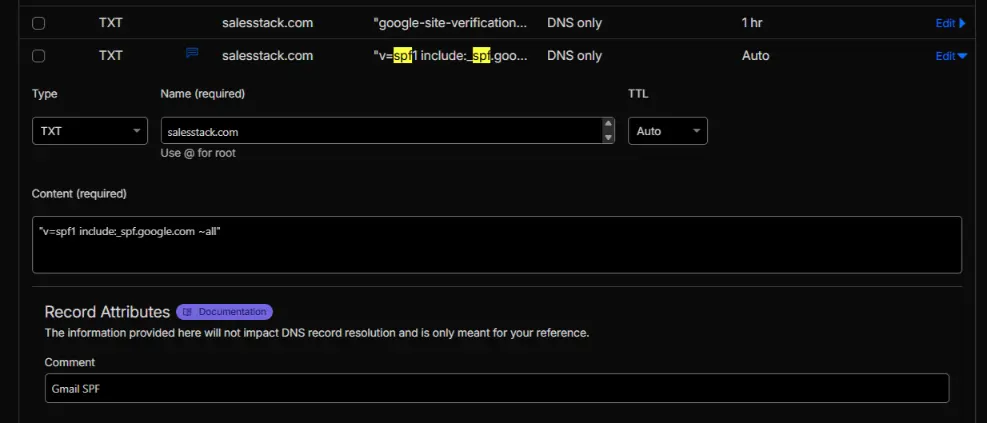
- Click Save
~all mean? The ~all at the end means "soft fail" - if an
email comes from a server not on this list, mark it as suspicious but still deliver it. This is the safest setting
when you're first getting started.1.3 - Edit an Existing SPF Record (If a Record Already Exists)
If MXToolbox showed you already have a v=spf1 record, do not create a new one. Instead:
- Find the existing TXT record in your DNS provider that starts with
v=spf1 - Click Edit on that record
- Find the
~allor-allat the very end of the value - Insert
include:_spf.google.comanywhere before that final~allor-all
Before:
v=spf1 include:mailgun.org ~allAfter:
v=spf1 include:mailgun.org include:_spf.google.com ~all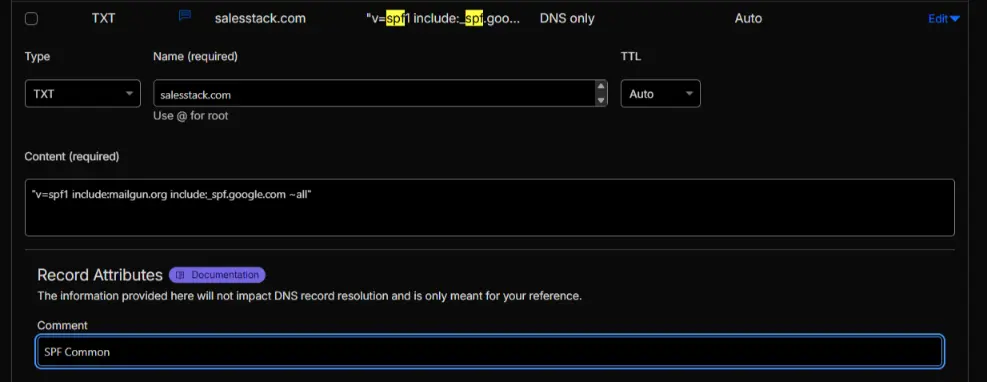
- Click Save
Step 2 - Set Up DKIM for Google Workspace
DKIM requires two things done in the right order: first generate a key inside Google Admin Console, then publish it in your DNS, then come back and activate it.
2.1 - Go to the DKIM Settings in Google Admin Console
- Open admin.google.com in your browser and sign in
- In the left sidebar, click Apps
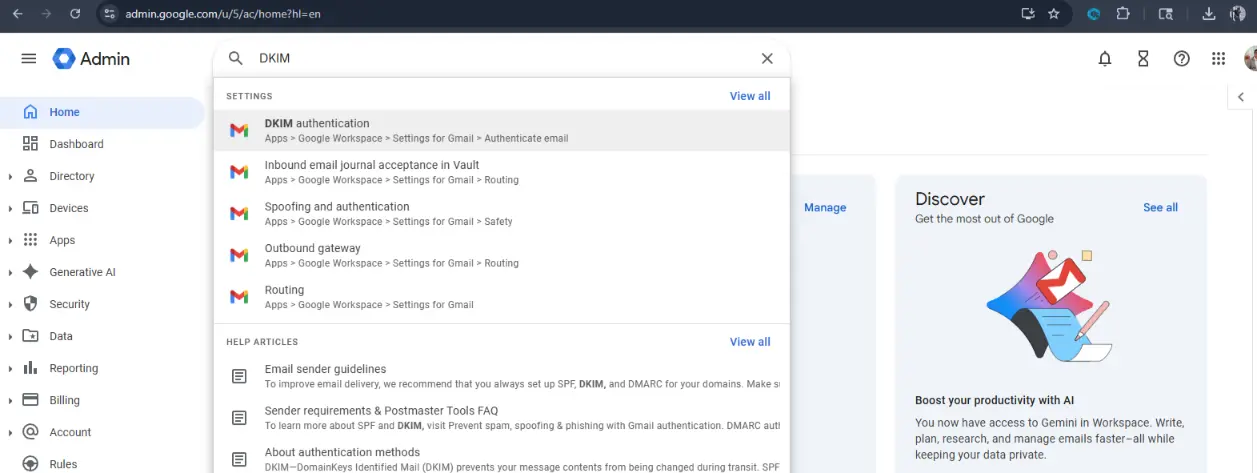
- Click Google Workspace
- Click Gmail
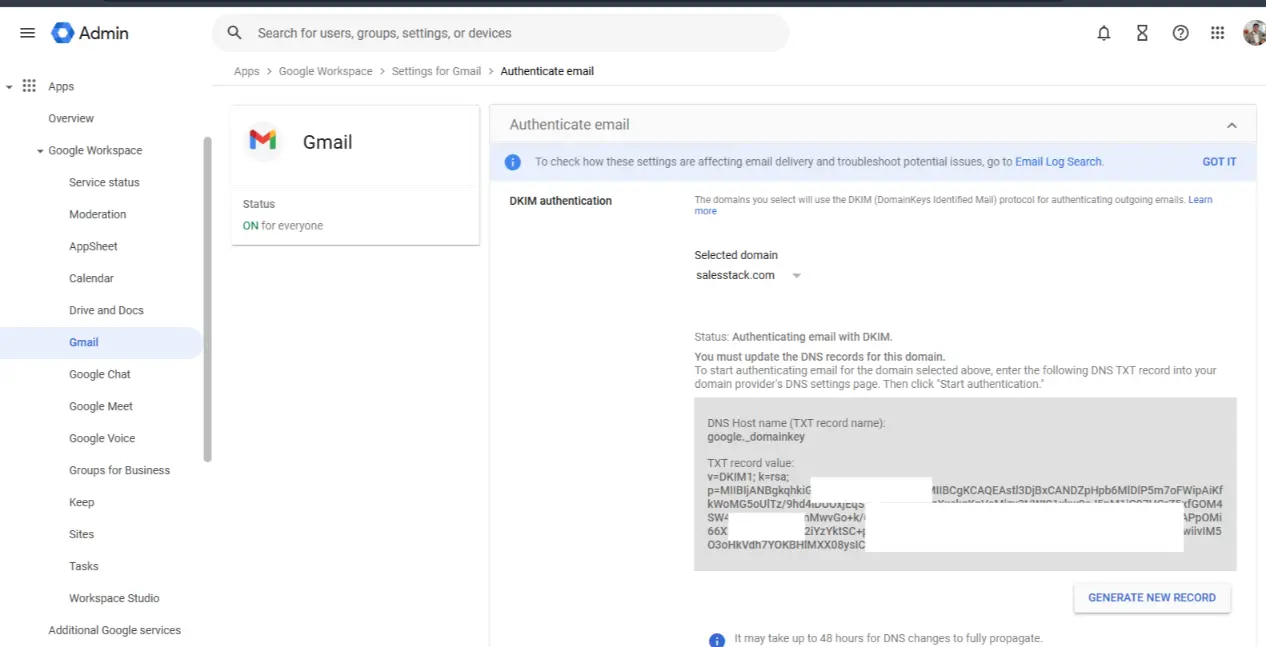
- The Gmail settings page opens. Scroll down until you see "Authenticate email" - click it
2.2 - Generate Your DKIM Key
- On the "Authenticate email" page, use the domain dropdown to select your domain (e.g., yourcompany.com)
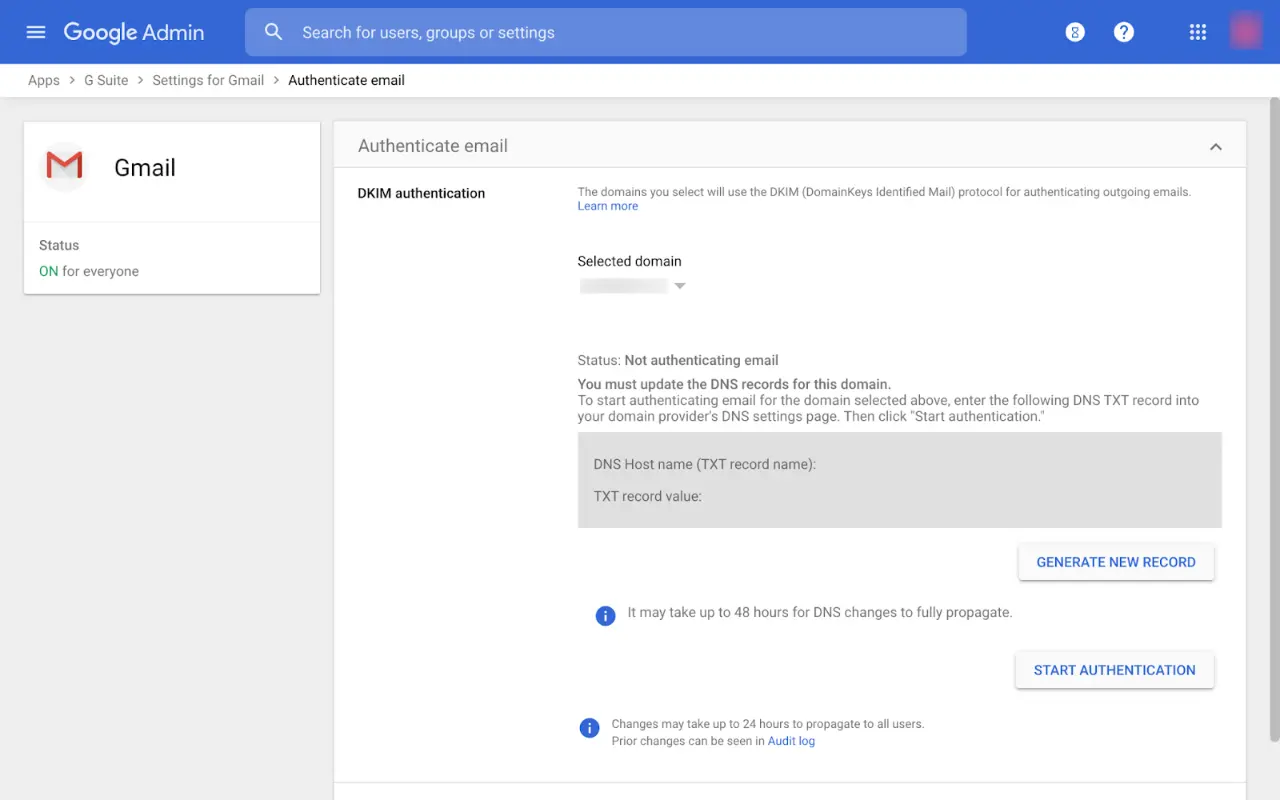
- Click Generate New Record
- A dialog box appears with two options:
| Setting | What to Choose | Why |
| DKIM key bit length | 2048-bit | More secure - always use this unless your DNS provider doesn't support it |
| Prefix selector | Leave as google | This is the name that identifies your DKIM key |
- Click Generate
2.3 - Copy the DKIM Values Google Gives You
After generating, you'll see two values on screen. You need both of these:
- DNS Hostname: Will look like
google._domainkey- this goes in the "Host/Name" field in DNS - TXT Record Value: A very long string starting with
v=DKIM1; k=rsa; p=...- this goes in the "Value" field in DNS
2.4 - Add the DKIM Record to Your DNS
- Go back to your DNS provider tab
- Click Add Record
- Fill in the fields:
| Field | What to Enter |
| Type | TXT |
| Host / Name | google._domainkey (copy exactly from Google Admin) |
| Value / Content | The long v=DKIM1; k=rsa; p=... string (copy exactly from Google Admin) |
| TTL | 3600 |
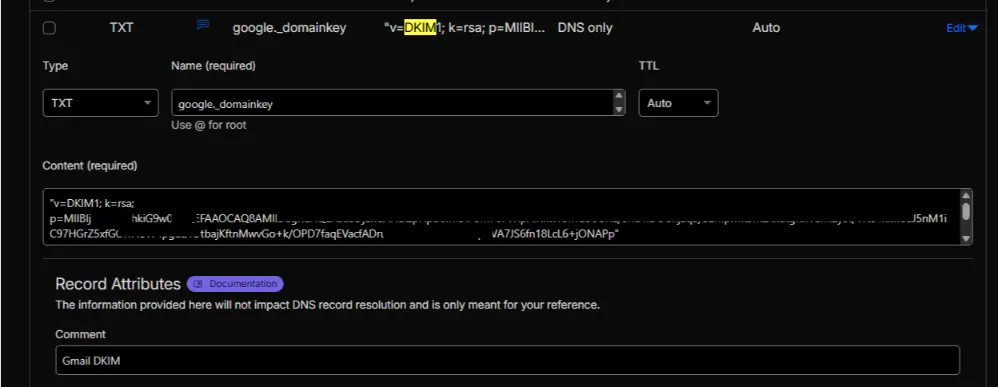
- Click Save
- ⏳ Wait 15–30 minutes before continuing. DNS changes take time to spread across the internet.
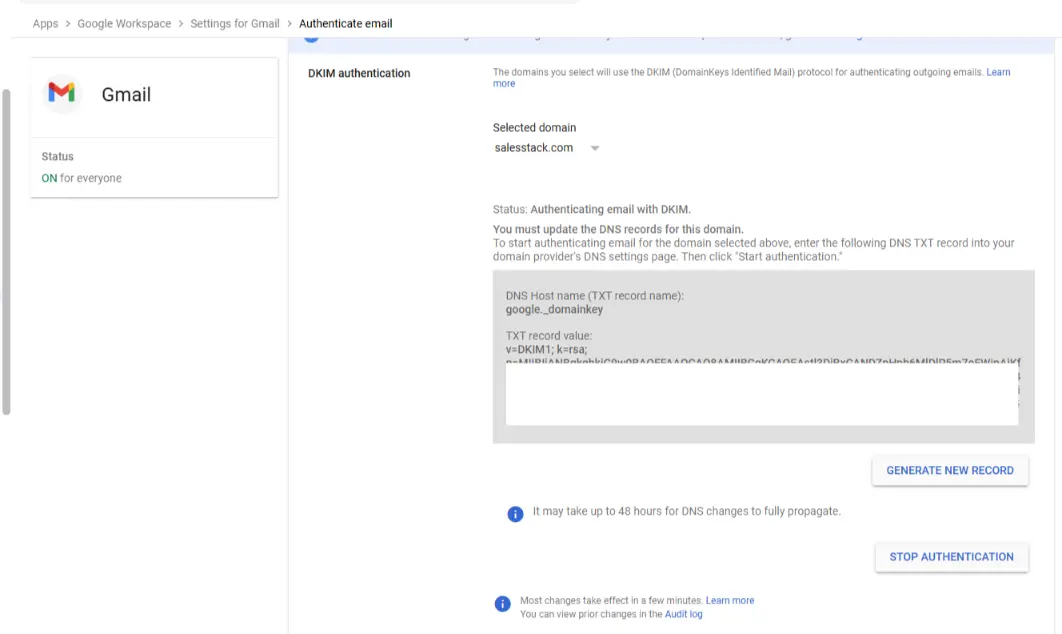
2.5 - Activate DKIM in Google Admin Console
This is the step most people forget. Publishing the DNS record alone is not enough - you must go back and tell Google to start using it.
- Return to admin.google.com → Apps → Google Workspace → Gmail → Authenticate email
- Click Start Authentication
- Click Save
- The status should now change to "Authenticating email with DKIM" shown in green
✅ DKIM is now live.
Step 3 - Set Up DMARC for Google Workspace
DMARC is the simplest of the three to add - it's a single DNS record, and there's no Google Admin Console step involved.
3.1 - Add Your DMARC Record
- Go to your DNS provider and click Add Record
- Fill in:
| Field | What to Enter |
| Type | TXT |
| Host / Name | _dmarc ← must include the underscore |
| Value / Content | v=DMARC1; p=none; rua=mailto:[email protected]; pct=100 |
| TTL | 3600 |
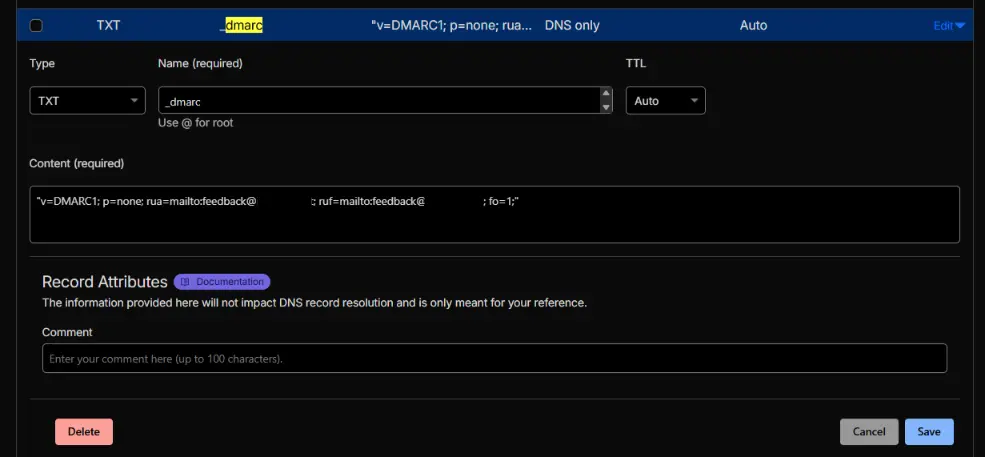
- Click Save
3.2 - Understanding Your DMARC Record
Here's what each part of v=DMARC1; p=none; rua=mailto:[email protected]; pct=100 means in plain
English:
| Tag | Example Value | What It Means |
| v=DMARC1 | Fixed | Tells servers this is a DMARC record |
| p= | none / quarantine / reject | Your enforcement policy (see table below) |
| rua= | mailto:[email protected] | Where to send weekly aggregate reports |
| pct= | 100 | Apply this policy to 100% of emails |
3.3 - The DMARC Policy Ladder (Start Slow, Enforce Later)
Never start at p=reject. You could accidentally block your own legitimate emails. Work through these
three stages:
| Stage | Policy | What Happens | How Long to Stay Here |
| 1 - Monitor | p=none | All emails deliver normally; reports sent to you | 2–4 weeks |
| 2 - Quarantine | p=quarantine | Failing emails go to spam folder | 2–4 weeks |
| 3 - Enforce | p=reject | Failing emails are completely blocked | Permanent goal |
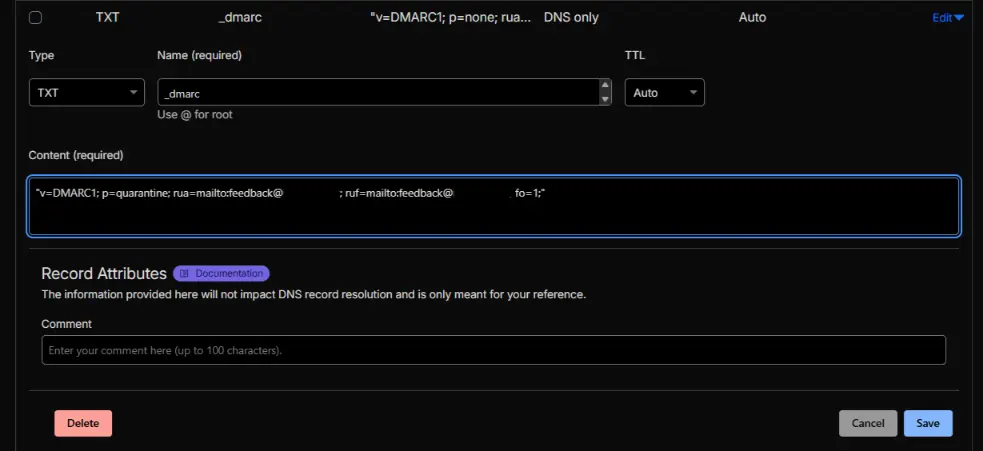
To move from p=none to p=quarantine: Go back to your DNS provider, find the
_dmarc TXT record, click Edit, and change the word none to quarantine. Save.
That's it.
PART 2: Microsoft 365 / Outlook Setup
How to Log In to Microsoft 365 Admin Portals
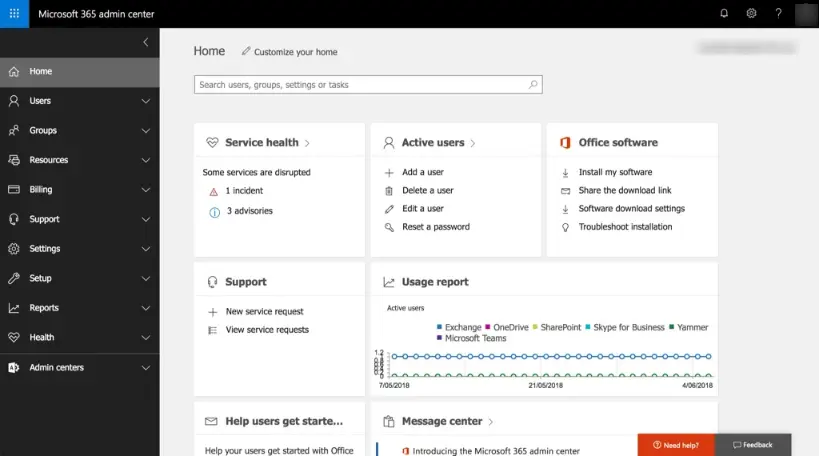
Microsoft 365 setup involves two different admin portals - one for general settings and one specifically for email security. Here are the direct links:
| Portal | What It's For | Direct Link |
| Microsoft 365 Admin Center | General account, users, domains | admin.microsoft.com |
| Microsoft 365 Defender Portal | Email security, DKIM setup | security.microsoft.com |
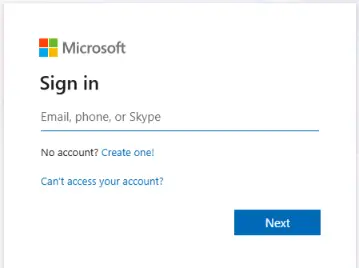
To log in:
- Open admin.microsoft.com in your browser
- Enter your Microsoft 365 admin email - typically [email protected] or [email protected]
- Enter your password and complete any two-factor authentication prompt
Step 4 - Set Up SPF for Microsoft 365
SPF for Microsoft 365 is configured entirely in your DNS provider - no Microsoft admin portal needed.
4.1 - Check for an Existing SPF Record First
Same as before - go to mxtoolbox.com/spf.aspx, enter your domain, and check.
- No record found → Follow Step 4.2
- Record exists → Follow Step 4.3
4.2 - Create a New SPF Record
Log in to your DNS provider, click Add Record, and fill in:
| Field | What to Enter |
| Type | TXT |
| Host / Name | @ |
| Value / Content | v=spf1 include:spf.protection.outlook.com -all |
| TTL | 3600 |
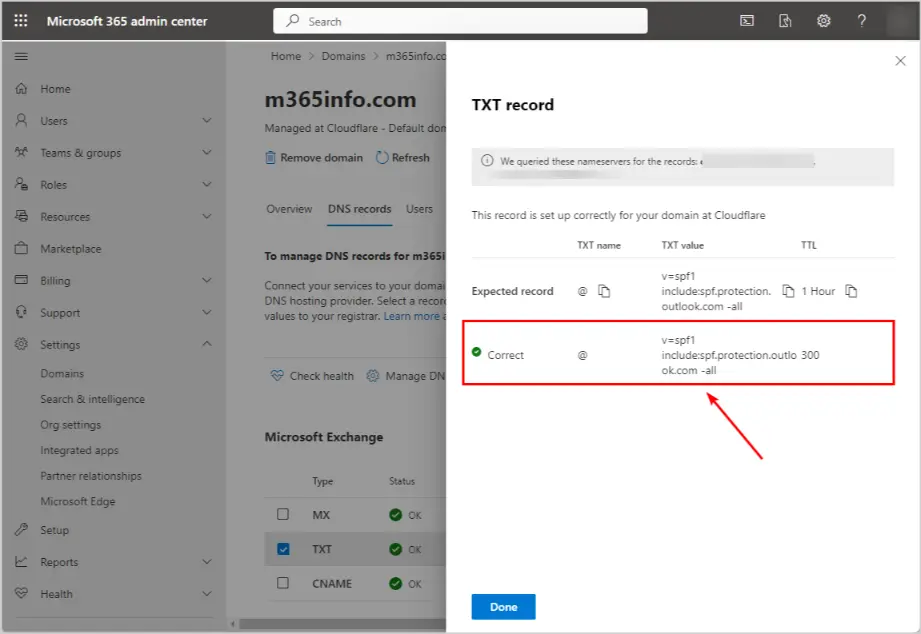
Click Save.
~all (soft fail). Microsoft recommends
-all (hard fail). Both are valid - Microsoft's is slightly stricter.
4.3 - Edit an Existing SPF Record
Find the v=spf1 TXT record in your DNS provider, click Edit, and add Microsoft's include before the
final all:
include: statements. Each one uses at least 1
lookup. Exceeding 10 silently breaks SPF.Step 5 - Set Up DKIM for Microsoft 365
Microsoft 365 DKIM uses CNAME records (not TXT records like Google). The process has three phases: generate in Defender → publish in DNS → enable in Defender.
5.1 - Navigate to DKIM in Microsoft Defender Portal
- Open security.microsoft.com in your browser
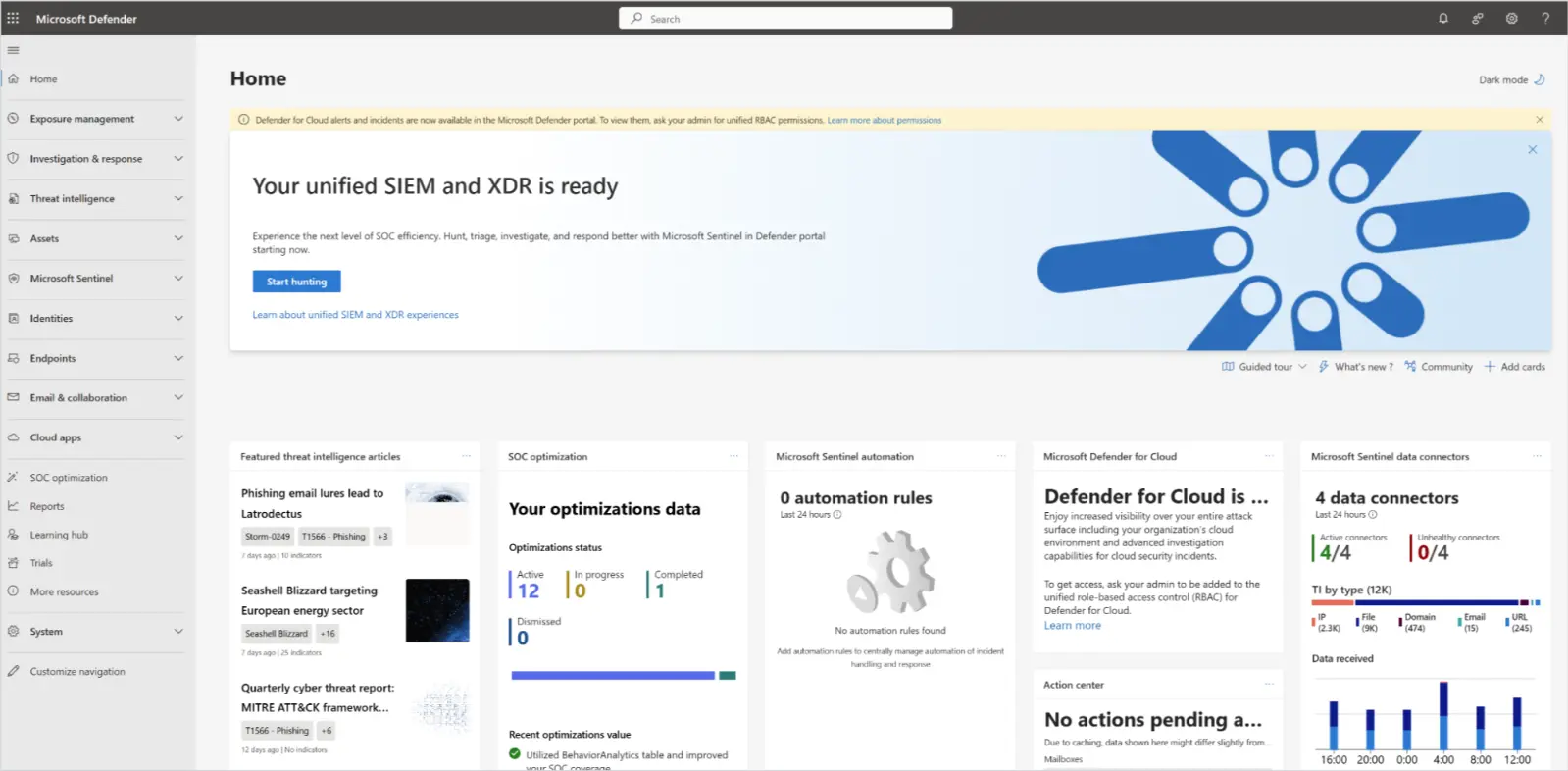
- In the left sidebar, click Email & Collaboration
- Click Policies & Rules
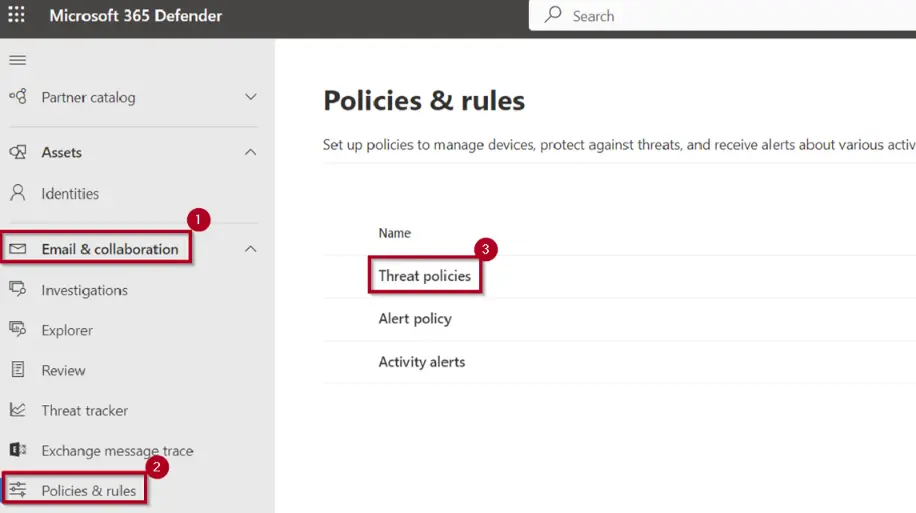
- Click Threat Policies
- Scroll down to the Rules section and click Email Authentication Settings
- Click the DKIM tab at the top of the page
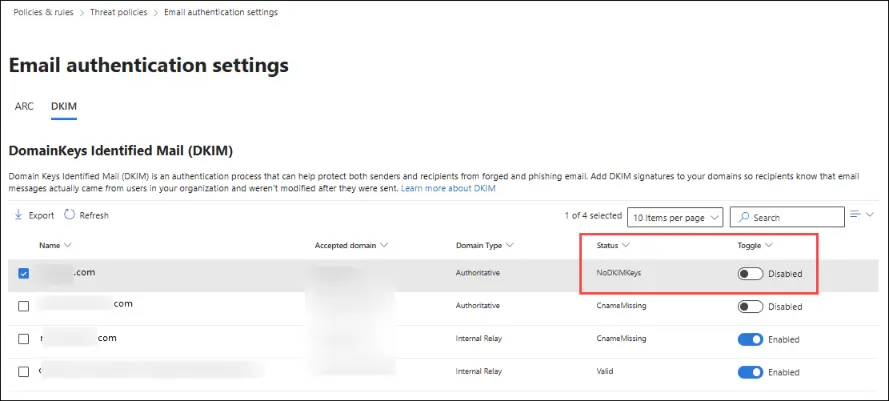
5.2 - Generate Your DKIM Keys
- In the DKIM tab, you'll see a list of your domains - click on your domain name
- A panel slides out from the right. Click Create DKIM Keys
- Microsoft will display two CNAME records. They'll look something like this (yours will be different):
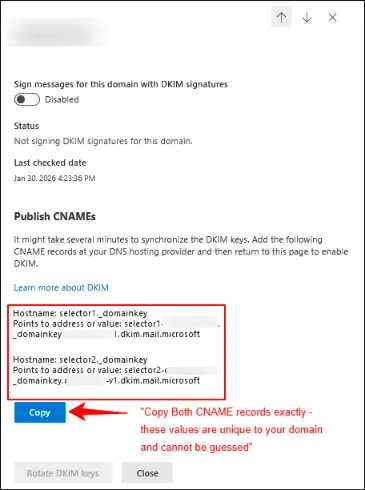
5.3 - Add Both CNAME Records to Your DNS
Go to your DNS provider. You'll add two separate CNAME records - one for each selector.
Record 1:
| Field | What to Enter |
| Type | CNAME |
| Host / Name | selector1._domainkey |
| Value / Content | (paste from Microsoft Defender) |
| TTL | 3600 |
Record 2:
| Field | What to Enter |
| Type | CNAME |
| Host / Name | selector2._domainkey |
| Value / Content | (paste from Microsoft Defender) |
| TTL | 3600 |
Click Save. Wait at least 15–30 minutes for DNS to propagate.
5.4 - Enable DKIM in Microsoft Defender
Just like Google, publishing the DNS records alone is not enough. You must go back and flip the switch.
- Return to security.microsoft.com → Email & Collaboration → Policies & Rules → Threat Policies → Email Authentication Settings → DKIM
- Click your domain
- In the right-side panel, find the toggle for "Sign messages for this domain with DKIM signatures"
- Click to switch it to Enabled
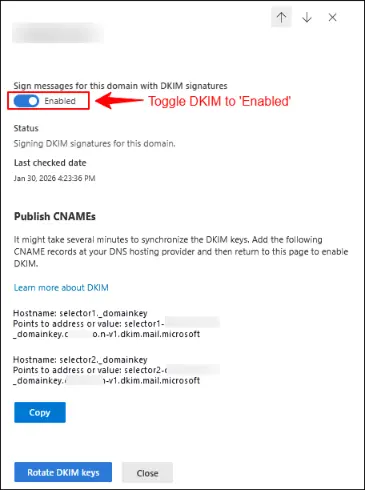
- The status should change to Enabled with a green checkmark ✅
Step 6 - Set Up DMARC for Microsoft 365
Microsoft does not set up DMARC for you automatically - this must be done manually in DNS. The process is identical to Google's DMARC setup.
Go to your DNS provider, click Add Record, and enter:
| Field | What to Enter |
| Type | TXT |
| Host / Name | _dmarc ← underscore is mandatory |
| Value / Content | v=DMARC1; p=none; rua=mailto:[email protected]; pct=100 |
| TTL | 3600 |
Click Save. Follow the same three-stage policy ladder (none → quarantine → reject) from Part 1, Step 3.3.
PART 3: Testing Your Setup
Wait at least 30–60 minutes after saving your last DNS change before testing. DNS changes need time to spread across the internet. For some providers, it can take up to 48 hours (though 1–2 hours is typical).
Option A: Test With SalesStack (Easiest - No Technical Knowledge Needed)
SalesStack includes a built-in Email Deliverability Checker that scans your domain and gives you a plain-English health report - no technical knowledge required.
- Log in to your SalesStack account at salesstack.com
- Navigate to Settings → Email Accounts
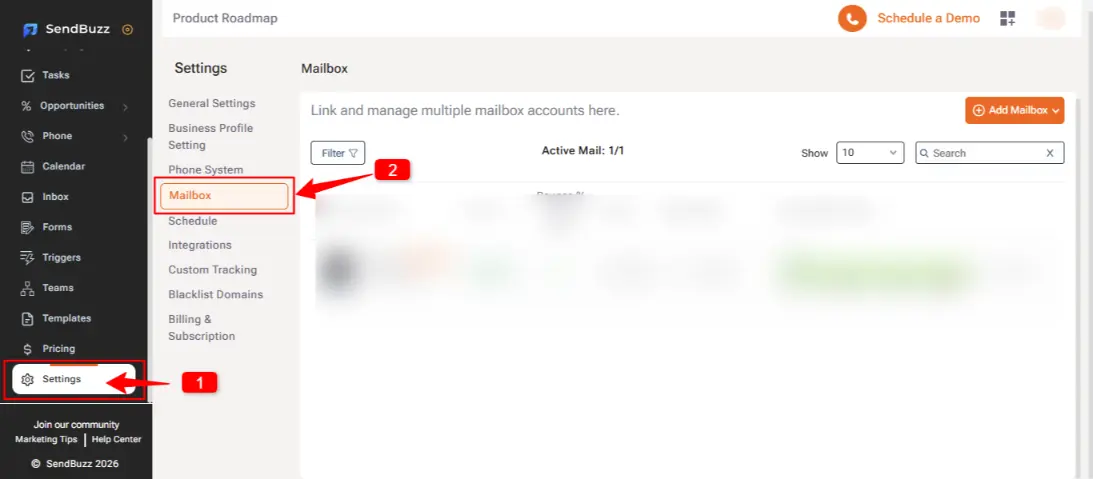
- Connect your Email Account
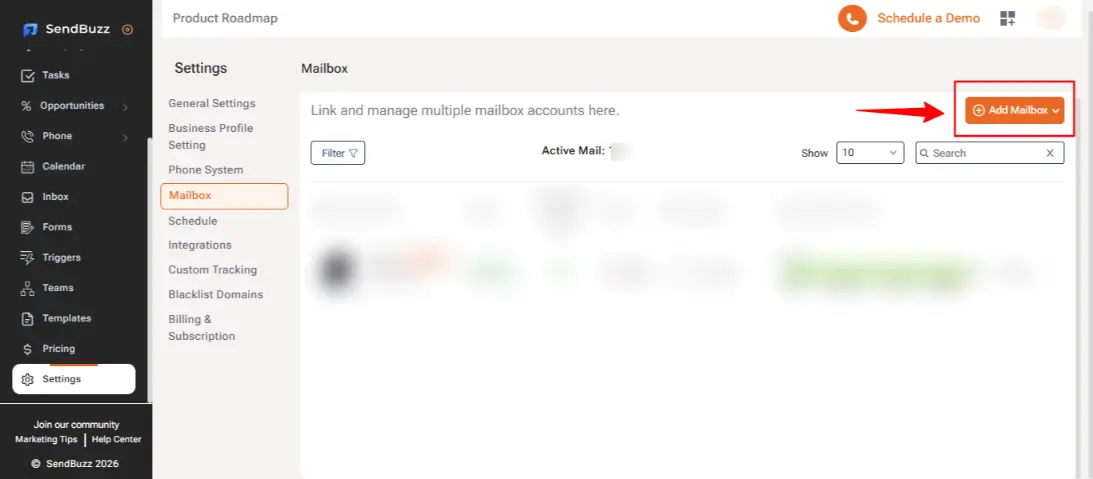
- SalesStack displays a traffic-light status for each record and gives you score out of 10. 3 points for each SPF, DMARC and DKIM and 1 for BIMI record.
- 🟢 Green = record is set up correctly
- 🟡 Amber = record exists but has issues
- 🔴 Red = record is missing or broken
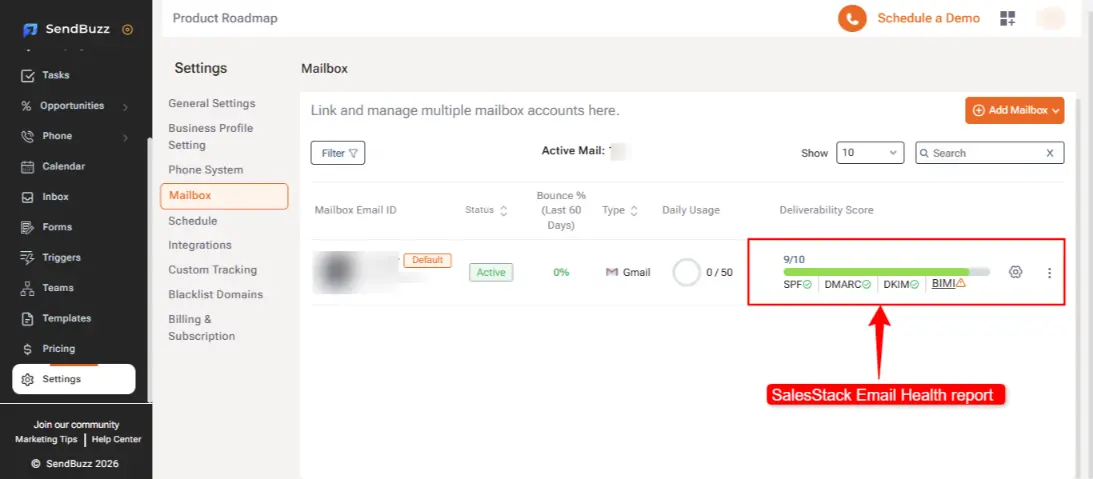
If anything shows amber or red, SalesStack tells you exactly what's wrong and what to fix - no guesswork required.
Option B: Test With MXToolbox (Free, Industry Standard)
MXToolbox is a free tool used by IT professionals worldwide to check DNS and email authentication records.
Check Your SPF
- Go to mxtoolbox.com/spf.aspx
- Enter your domain → click SPF Record Lookup
- ✅ Healthy result: Your
v=spf1record appears with all includes listed and no red error rows
Check Your DKIM
- Go to mxtoolbox.com/dkim.aspx
- Enter your domain
- In the Selector field, enter:
google→ if you're on Google Workspaceselector1→ if you're on Microsoft 365
- ✅ Healthy result: You see a long public key and no errors
Check Your DMARC
- Go to mxtoolbox.com/dmarc.aspx
- Enter your domain → click DMARC Lookup
- ✅ Healthy result: You see your
v=DMARC1record and the current policy level
Option C: Google's Free Checker (Google Workspace Only)
Google provides its own diagnostic tool that checks everything at once:
- Go to toolbox.googleapps.com/apps/checkmx/
- Enter your domain
- Google checks MX, SPF, DKIM, and DMARC simultaneously and flags anything wrong
Troubleshooting: The 7 Most Common Mistakes
These are the errors that trip up almost everyone - including experienced IT teams:
- Two SPF records on one domain - The single most common mistake. You can only have ONE
v=spf1TXT record per domain. Having two breaks SPF permanently and silently. Always edit the existing one, never create a second - Missing the underscore in
_dmarc- The host must be_dmarcwith an underscore. Without it, the record is invisible and your DMARC policy never applies - Forgetting to click "Start Authentication" in Google Admin - Publishing the DKIM DNS record alone is not enough. You must go back to Admin Console and activate it
- Forgetting to click "Enable" in Microsoft Defender - Same issue on the Microsoft side. DNS records alone don't activate DKIM - the toggle in Defender must be switched on
- Going straight to
p=rejecton DMARC - Start atp=nonefor 2–4 weeks. Jumping straight to reject can block your own newsletters, support emails, or CRM emails - Exceeding the SPF 10 DNS lookup limit - Each
include:statement uses at least 1 of your 10 allowed lookups. If you stack too many email services, SPF silently stops working. Count your includes carefully - Copying DKIM values from a guide instead of the portal - Microsoft's DKIM CNAME values are unique to your specific account. Never copy them from an example - always generate and copy them from your own Defender portal
Quick Reference: All DNS Records at a Glance
Google Workspace (Gmail)
| Record | Type | Host | Value |
| SPF | TXT | @ | v=spf1 include:_spf.google.com ~all |
| DKIM | TXT | google._domainkey | (Generate in Google Admin → Authenticate Email → copy from there) |
| DMARC | TXT | _dmarc | v=DMARC1; p=none; rua=mailto:[email protected]; pct=100 |
Microsoft 365 (Outlook)
| Record | Type | Host | Value |
| SPF | TXT | @ | v=spf1 include:spf.protection.outlook.com -all |
| DKIM | CNAME | selector1._domainkey | (Generate in Microsoft Defender → DKIM → copy from there) |
| DKIM | CNAME | selector2._domainkey | (Generate in Microsoft Defender → DKIM → copy from there) |
| DMARC | TXT | _dmarc | v=DMARC1; p=none; rua=mailto:[email protected]; pct=100 |
🛡️ Your domain's email reputation is one of your most valuable business assets. misconfigured record doesn't just hurt deliverability - it can get your domain blacklisted, block your entire team's outbound email, and let attackers impersonate your brand. Use SalesStack's Email Health tool to monitor your domain authentication status continuously and catch issues before they cost you pipeline.
